
The sinking feeling in my stomach was immediate. I had been carefully organizing our team’s project files on the shared media server, a digital repository that felt as essential to our workflow as the air we breathed. Then, a slip of the mouse, a misguided drag-and-drop, and a folder containing weeks of painstakingly compiled research vanished. Not just moved, but gone. Deleted. My heart hammered against my ribs. This wasn’t just a minor inconvenience; it was a potential roadblock, a gaping hole where crucial data should have been. The shared nature of the server added another layer of complexity. This wasn’t just about my own digital mess; it had the potential to impact my colleagues, disrupting their own progress.
The Digital Echo: Understanding File Deletion on Shared Servers
When a file is “deleted” on a typical computing system, it’s not immediately obliterated from existence. Think of it less like a physical erasure and more like a carefully marked-out parking spot in a vast digital parking lot. The operating system, in this case, the server’s OS, simply removes the file’s entry from the directory structure, the index that tells the system where to find things. The actual data remains on the storage medium, but the system no longer knows where to access it. It’s like tearing a page out of a library’s card catalog; the book is still on the shelf, but without the catalog entry, it’s much harder to find. On a shared media server, this process is amplified because multiple users interact with the same storage space, and the underlying infrastructure is often more robust and complex than a personal computer.
The Lifecycle of Deleted Data
The fate of deleted data hinges on how the storage system operates and how it manages free space. Overwriting – the physical act of writing new data onto the sectors previously occupied by deleted files – is the ultimate eraser. Until that overwriting occurs, the data, the digital ghost of the deleted file, lingers. The speed at which this overwriting happens is a critical factor in recovery efforts. In a heavily used shared server environment, where files are constantly being added, modified, and deleted, the likelihood of overwriting increases exponentially. Imagine a busy highway; a deleted car is quickly replaced by a new one, obscuring any trace of the original.
The Server’s Architecture and Its Impact
The specific architecture of the shared media server plays a crucial role. Is it a simple Network Attached Storage (NAS) device, or a more complex Storage Area Network (SAN) with intricate RAID configurations? Each of these has different implications for data redundancy and recovery. RAID (Redundant Array of Independent Disks) systems, for example, distribute data across multiple drives for performance and fault tolerance. While beneficial for preventing data loss due to drive failure, the way data is striped and parity is calculated can significantly affect the complexity of recovering deleted files. A poorly executed deletion on a RAID array might scatter fragments of data across multiple disks, making reconstruction a Herculean task.
When the initial shock subsides, a clear head is paramount. Panic is the enemy of effective problem-solving, especially when dealing with digital assets. The first few minutes and hours after realizing a file is missing are often the most critical for the success of any recovery attempt. Acting swiftly, but deliberately, is the key to preventing the digital footprint of the deleted file from being permanently erased.
Preserving the Scene: Minimizing Further Data Corruption
The absolute first step after discovering a deleted file is to stop all activity that might write new data to the server. This is akin to preserving a crime scene; you don’t want to smudge any potential evidence. This means ceasing all uploads, downloads, modifications, and especially, any further deletion operations. If the server is used by a team, immediate communication is vital. A simple message to colleagues to “hold off on any server activity until further notice” can be the difference between a successful recovery and a permanent loss.
The Importance of Read-Only Access
Ideally, you want to transition the affected parts of the server (or the entire server if possible and practical) into a read-only state. This prevents any new data from being written over the deleted file’s location. This might involve working with the server’s administrator to temporarily mount the affected storage volume in a read-only mode. Think of it as putting up a “Do Not Disturb” sign on a delicate operation.
Avoiding Accidental Overwrites
Even seemingly innocuous actions can inadvertently lead to overwriting. For instance, if you try to search for the deleted file and the search index itself writes data to the disk, you could inadvertently harm your chances. It’s a delicate dance; every interaction with the storage system has the potential to change its state.
If you’re looking for effective methods to recover deleted files on a shared media server, you might find the article on data recovery techniques particularly helpful. It provides detailed insights and step-by-step instructions that can assist you in retrieving lost data. For more information, you can read the article here: How to Find Deleted Files on a Shared Media Server.
Exploring Built-in Recovery Mechanisms
Most modern operating systems and server management tools come equipped with some form of built-in recovery functionality. These are often the first and easiest avenues to explore. They are designed for common scenarios and can often resolve minor data loss incidents with minimal fuss.
The Recycle Bin Analogy: Understanding Versioning and Snapshots
Many server environments, particularly those running Windows Server or employing advanced file systems, have features akin to a “Recycle Bin” for network shares. This isn’t a literal bin but a mechanism that retains previous versions of files and folders or creates periodic snapshots of the entire file system.
Windows Server File History and Previous Versions
If your shared media server is running on Windows Server, the “Previous Versions” feature, which relies on Volume Shadow Copy Service (VSS), can be a lifesaver. VSS creates point-in-time snapshots of volumes. By right-clicking on the parent folder where the file was deleted, you can often access a list of previous versions of that folder and restore files from an earlier snapshot date. This is like having a time machine for your files.
NAS Device Snapshot Capabilities
Many Network Attached Storage (NAS) devices, from brands like Synology or QNAP, also offer sophisticated snapshotting capabilities. These snapshots are typically configured to occur at regular intervals (e.g., hourly, daily). Accessing these snapshots through the NAS’s web interface is often straightforward and can allow you to browse past states of your shared folders and restore individual files or entire directories.
Examining Server-Side Trash or Version Control Systems
Beyond the OS-level features, some media servers or collaborative platforms built on top of them might have their own internal trash bins or robust version control systems. Projects heavily reliant on content creation or code development often integrate tools like Git, which, when configured on a server, can track every change and allow for easy rollback.
Content Management Systems (CMS) and Media Libraries
If your shared media server is part of a Content Management System (CMS) or a specialized media library, these platforms often have their own versioning and undelete features embedded within their administrative interfaces. These are usually designed with the end-user in mind, making recovery a more intuitive process.
When Built-in Options Fail: Third-Party Data Recovery Software
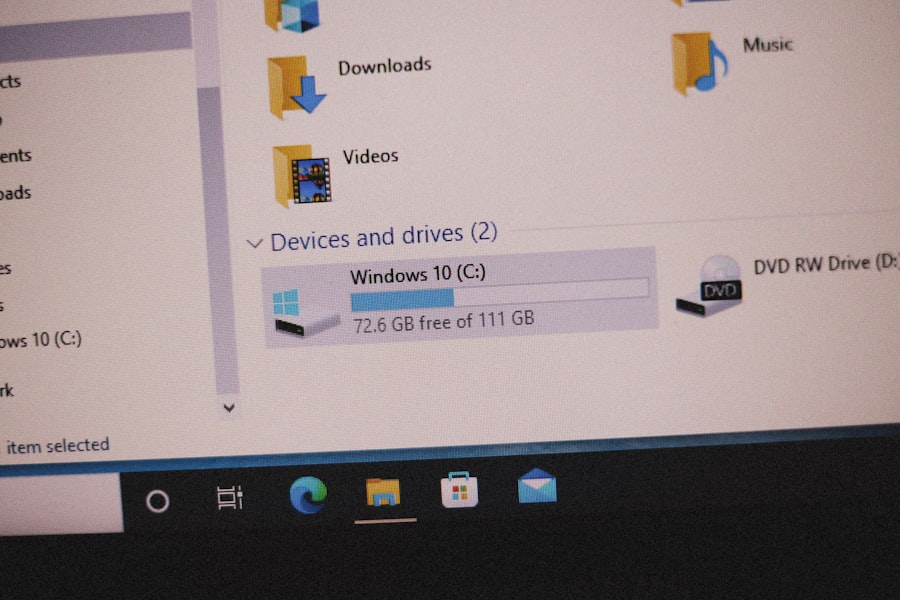
If the built-in recovery mechanisms prove insufficient, or if the deletion was more severe (e.g., a formatted drive, or more extensive overwriting), you may need to turn to specialized third-party data recovery software. These tools are designed to scan storage media at a much deeper level, looking for the remnants of deleted files.
Software Designed for Server Environments
Not all data recovery software is created equal. For shared media servers, it is crucial to use software that is specifically designed to handle network shares, large volumes, and complex file system structures. Some software is intended for individual PCs, and attempting to use it on a server could lead to further damage or be ineffective.
Scanning Network Drives
The ability of the software to scan network drives directly, or to create disk images of the server’s drives for offline analysis, is a key differentiator. Running recovery software directly on a live server is generally ill-advised due to the risk of exacerbating the problem. Therefore, the software should ideally allow for remote scanning or the creation of sector-by-sector images.
File System Reconstruction Capabilities
Look for software that claims to reconstruct corrupted file systems or piece together fragmented files. This is where the real power of advanced recovery tools lies. They often employ sophisticated algorithms to identify file signatures and reassemble data based on patterns and metadata.
The Art of Forensic Data Recovery
In more challenging scenarios, employing professional data recovery services might be the only viable option. These services have specialized hardware and cleanroom environments to handle severely damaged drives and can often recover data that is inaccessible to standard software.
Disk Imaging and Forensic Analysis
Professional services will typically create a bit-for-bit “image” of the affected storage media. This image is an exact replica of the data at a specific point in time. They then perform their analysis on this image, ensuring the original drive remains untouched, thus preserving the integrity of the evidence.
Physical Reconstruction of Drives
In cases of physical drive failure (e.g., a head crash in a traditional hard drive), data recovery specialists can sometimes physically repair or replace components in a cleanroom environment to extract data. This is a highly specialized and often expensive process, but it can be the last resort for critical data.
Proactive Measures: Building a Resilient Data Strategy
The best way to deal with data loss is to prevent it in the first place. Implementing a robust data backup and recovery strategy is not an option; it’s a fundamental necessity for any organization that relies on digital information. Thinking about recovery after a disaster strikes is like closing the barn door after the horse has bolted.
The Cornerstone of Data Security: Regular Backups
This is the undeniable bedrock of any data strategy. A comprehensive backup plan involves multiple layers and regular execution. The frequency and scope of backups should align with the criticality of the data and the acceptable level of data loss (Recovery Point Objective – RPO).
The 3-2-1 Backup Rule
A widely accepted best practice is the 3-2-1 backup rule:
- 3 copies of your data.
- 2 different types of storage media.
- 1 copy stored offsite.
This rule significantly reduces the risk of complete data loss from a single point of failure, whether it’s a hardware malfunction, a cyberattack, or a natural disaster.
Incremental vs. Full Backups
Understanding the difference between full, incremental, and differential backups is crucial for efficient storage management and faster recovery times. Full backups copy all data. Incremental backups copy only the data that has changed since the last backup (of any type). Differential backups copy only the data that has changed since the last full backup.
Version Control and Archiving Policies
Beyond simple backups, implementing strong version control and archiving policies can provide an additional safety net. This ensures that older versions of files are retained for extended periods, offering a deeper level of recovery and historical data access.
Implementing Versioning in Applications
Many applications, including word processors, spreadsheets, and creative software, have built-in versioning features. Encouraging their use can help users recover previous iterations of their work.
Establishing Archiving Schedules
For data that is no longer actively used but still needs to be retained for compliance or historical purposes, establish clear archiving schedules and procedures. This frees up active storage space while ensuring data is still accessible if needed, albeit with potentially longer retrieval times.
If you’ve ever accidentally deleted important files from a shared media server, you might be wondering how to recover them effectively. A helpful resource on this topic can be found in a related article that provides step-by-step instructions and tips for retrieving lost data. For more detailed guidance, you can check out this informative piece on recovering deleted files from shared media servers. This article not only explains the recovery process but also offers preventive measures to avoid future data loss.
The Human Element: Training and Best Practices
| Method | Description | Tools/Commands | Effectiveness | Notes |
|---|---|---|---|---|
| Check Recycle Bin/Trash | Look for deleted files in the server’s recycle bin or trash folder. | File Explorer, Finder, or server GUI | High (if enabled) | Depends on server OS and configuration |
| Use File Recovery Software | Scan the server storage for recoverable deleted files. | Recuva, TestDisk, EaseUS Data Recovery | Medium to High | Works best if files were recently deleted and not overwritten |
| Check Server Backups | Restore deleted files from scheduled backups. | Backup software (e.g., Veeam, Acronis) | Very High | Requires regular backup policies |
| Use Shadow Copies/Volume Snapshots | Access previous versions of files via snapshots. | Windows Shadow Copies, LVM snapshots | High | Must be enabled prior to deletion |
| Check Server Logs | Review logs to identify deleted files and users who deleted them. | Event Viewer, syslog, auditd | Low to Medium | Does not recover files but helps track deletion events |
| Use Command Line Tools | Search for deleted files or remnants using CLI tools. | find, grep, extundelete (Linux) | Medium | Requires technical expertise and may need downtime |
Technology can only do so much. The effectiveness of any data recovery strategy ultimately relies on the users who interact with the system. A well-trained team is often the first line of defense against accidental data loss.
Educating Users on File Management
Simple, consistent training on proper file management techniques can prevent many data loss incidents. This includes educating users on how to correctly move, copy, and delete files, as well as understanding the implications of those actions.
Understanding the Server’s Structure
Ensuring users understand the shared server’s directory structure and the importance of storing files in the correct locations can prevent accidental deletions or misplacements. This is about fostering a sense of digital stewardship.
The Pitfalls of Wildcard Deletions
One of the most common and catastrophic mistakes is using wildcard characters (*, ?) in deletion commands without absolute certainty of what will be affected. A misplaced wildcard can lead to the deletion of vast amounts of unintended data. Thorough training on command-line usage, or discouraging its use for deletions by non-administrators, is vital.
Establishing Clear Protocols for Data Handling
Having clearly defined protocols for how data should be handled on the shared server is essential. This includes guidelines on file naming conventions, folder organization, and permissions management.
Role-Based Access Control (RBAC)
Implementing Role-Based Access Control can significantly reduce the risk of accidental deletions. By granting users only the necessary permissions to perform their tasks, you limit their ability to inadvertently delete or modify files they shouldn’t touch. This is like giving each person a specific key that only opens certain doors.
Regular Auditing of Server Activity
Regularly auditing server logs can help identify patterns of behavior that might indicate potential data loss risks or unauthorized activity. This proactive approach allows for early intervention and correction of problematic practices.
The initial panic has long since faded, replaced by a methodical approach. I’ve learned that the digital realm, while powerful, is also fragile. My brush with data loss on the shared media server was a stark reminder that vigilance, coupled with a well-thought-out strategy, is the ultimate guardian of our digital endeavors. The ease with which a folder can vanish is a terrifying proposition, but the existence of recovery mechanisms, both built-in and external, offers a glimmer of hope. More importantly, the experience has impressed upon me the absolute necessity of proactive measures. A robust backup strategy isn’t just good practice; it’s the very lifeline of our digital operations, ensuring that even when the unexpected occurs, the work we do can continue to flow, uninterrupted.

SHOCKING: My Sister Forged Grandpa’s Will But The Smart TV Snitched
FAQs
1. Can deleted files on a shared media server be recovered?
Yes, deleted files on a shared media server can often be recovered, especially if the server has backup systems, versioning, or a recycle bin/trash feature enabled. Recovery success depends on how the server manages deleted data and how much time has passed since deletion.
2. What steps should I take immediately after realizing a file was deleted?
Immediately stop using the server or the specific storage location to prevent overwriting the deleted files. Then, check the server’s recycle bin or trash folder, consult backups, or contact the server administrator for recovery options.
3. Are there specific tools to recover deleted files from a shared media server?
Yes, there are specialized data recovery tools and software designed for networked storage systems and media servers. The choice of tool depends on the server’s operating system and file system. It’s best to use tools recommended by the server manufacturer or IT professionals.
4. Does the server’s backup policy affect file recovery?
Absolutely. Regular backups significantly increase the chances of recovering deleted files. If the server has automated backups or snapshots, you can restore files from these backups even if they are permanently deleted from the active storage.
5. Can user permissions impact the ability to recover deleted files?
Yes, user permissions can affect file recovery. Only users with appropriate administrative or recovery privileges can access backup systems or use recovery tools. Regular users may need to request assistance from the server administrator to recover deleted files.